How to Delete Snaps on Snapchat – A Complete Guide to Snap Control
Did you send the wrong snap to someone on Snapchat and now you want to take it back? It happens to everyone. A photo goes to the wrong friend, a message has a typo, or you posted a story you regret.
The good news is that Snapchat lets you delete almost everything. But most people in the USA and UK don’t know the right way to do it. They press the wrong buttons and the snap stays there.
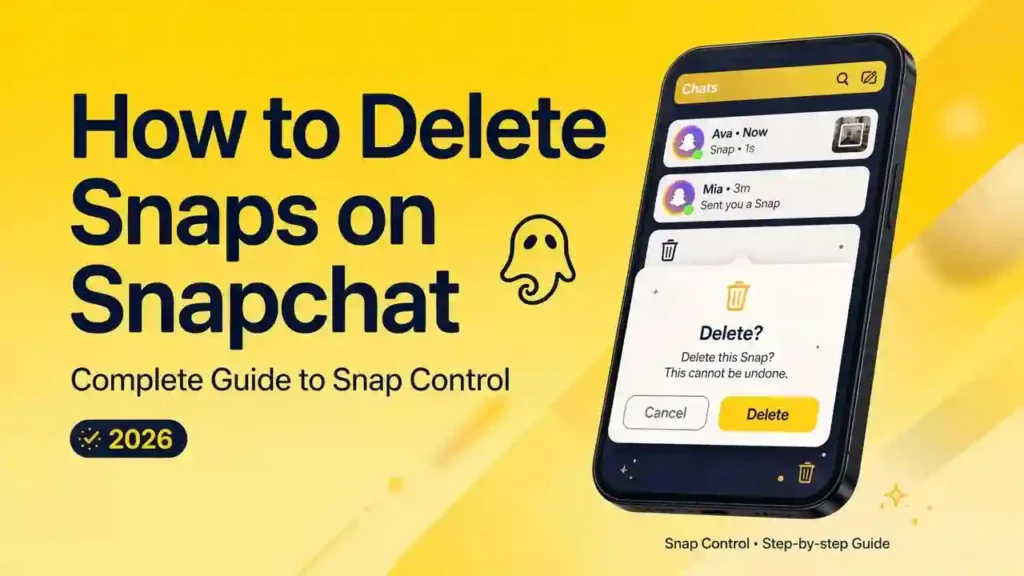
In this complete guide, we will show you exactly how to delete snaps on Snapchat with simple, step-by-step methods. You will learn how to delete sent snaps in chat, how to delete a Snapchat story, how to delete memories, and how to control your snaps better.
What Happens When You Delete a Snap
Before diving into the steps, it helps to understand what actually happens when you delete a snap — because the result is not always the same.
When you delete a snap in chat, Snapchat notifies the other person that a snap was deleted. Your friends will be able to see that a snap was deleted in chat. The snap disappears from your chat and theirs — but they receive a notification that something was removed. Snaptroid APK
When you delete a story snap, it is removed immediately and no future viewers can access it. However, users who already viewed the story before deletion may still remember or have captured the content through screenshots or screen recordings.
When you delete a memory, it is removed from your Snapchat account only. If you had saved the same snap to your phone’s camera roll separately, it remains there until you delete it from your photos app as well.
Can You Really Delete Snaps on Snapchat After Sending?
Yes, you can. Snapchat understands that mistakes happen. According to Snapchat’s official support page, you can delete a Snap you sent in a chat before or even after the other person has seen it.
- If you delete a snap BEFORE they open it: The snap is completely removed. They will never see it. They will only see a note that says “You deleted a chat.”
- If you delete a snap AFTER they open it: The snap will be removed from the chat history, but they may have already seen it or taken a screenshot.
- For Stories: You can delete any snap from your story anytime within 24 hours.
So, speed is important. Let’s learn the practical steps for each situation.
How to Delete a Snap in Chat — iPhone and Android
This is the most common deletion task — removing a snap you have already sent to someone in a one-on-one or group chat.
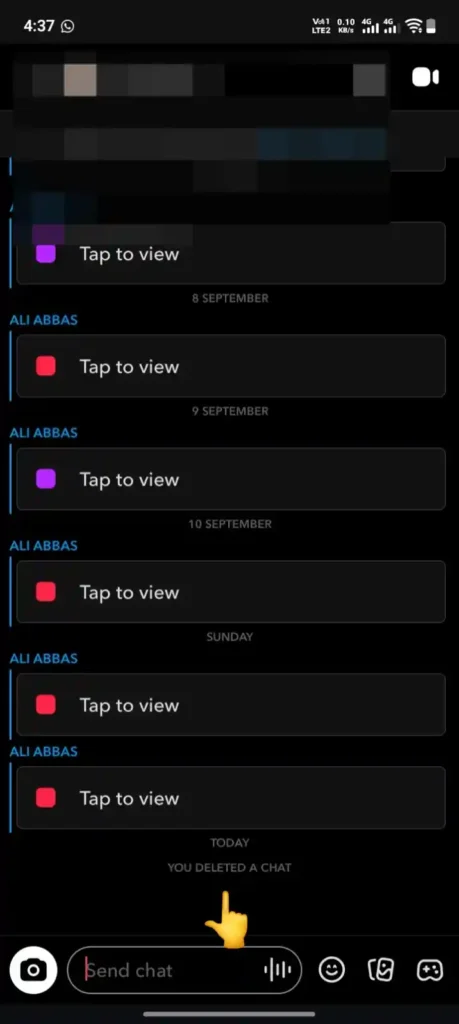
Step 1 — Open Snapchat
Open the Snapchat app on your iPhone or Android device and make sure you are signed in to the correct account.
Step 2 — Go to Chat
Swipe right from the camera screen or tap the chat icon at the bottom of the screen to open your conversations list.
Step 3 — Open the Conversation
Tap on the conversation that contains the snap you want to delete.
Step 4 — Press and Hold the Snap
Find the snap you want to remove. Press and hold on it until a menu appears. Do not tap it — hold it for one to two seconds.
Step 5 — Tap Delete
From the options that appear, tap Delete. Snapchat will ask you to confirm. Tap Delete again to confirm the removal. The snap disappears immediately from the conversation. The other person or group members will see a notification that a snap was deleted.
How to Delete Multiple Story Snaps at Once
Since Snapchat requires individual deletion for each story snap, here is the fastest way to clear an entire story:
Open your story, delete the first snap, then immediately swipe to the next snap and delete that one. Continue until all snaps in the story have been removed. This process takes around 10 to 15 seconds per snap — so clearing a story of five snaps takes under two minutes.
How to Delete Saved Snaps From Your Camera Roll
If you previously saved a snap to your phone’s camera roll and want to delete it from there as well, Snapchat cannot do this for you. You need to go to your phone’s photos app directly.
On iPhone:
Open the Photos app, find the snap in your Recents or Camera Roll album, tap it, and tap the trash icon to delete it. Go to Recently Deleted and delete it from there too for permanent removal.
On Android:
Open your Gallery or Photos app, find the snap, tap and hold it, and select Delete. Confirm the deletion to permanently remove it from your device. How to Download Snaps Without Notification Using Snaptroid APK
Can the Other Person Still See a Deleted Snap
This is the question US and UK users ask most frequently — and the honest answer is it depends on timing.
If you delete a snap in chat before the other person opens it, they will see only a deletion notice — not the content of the snap. If they have already opened it and read it before you deleted it, the snap is gone from the interface but they have already seen its content.
For stories, anyone who viewed the story before you deleted it has already seen it. Deletion prevents new viewers from seeing the content going forward — but it cannot undo what has already been viewed. This is one of the reasons many Snaptroid APK users prefer using the app to manage their content — the My Eyes Only vault and privacy controls in Snaptroid give you an additional layer of content management that the official Snapchat app does not provide.
Final Word
Knowing exactly how to delete snaps on Snapchat gives you complete control over your content at every stage — before it is seen, after it is seen, and anywhere it is stored. Whether you are removing a story snap, clearing a chat, or deleting memories, the process for each is straightforward once you know the right steps.
Follow the guides above for each specific situation, and remember — deleting snaps on Snapchat removes content going forward, but cannot undo what has already been viewed. Act quickly when you need to, and use the privacy tools available in Snaptroid for an additional layer of content control beyond what the official app provides.