How to Secure Your Snapchat Account in 10 Minutes
Your Snapchat account holds more than snaps. It contains your private chats, saved Memories, your friend list and sometimes your location. If someone takes control of it, they can read your messages, impersonate you and message your friends with scams. Most account takeovers are not clever hacks. They happen because of weak passwords, reused logins or a tap on a fake link.
The good news is that you can close most of these doors in about ten minutes. This guide walks you through the steps in order, using only features that already exist in the official app.
Menu names can change slightly between app versions. If you cannot find a setting, use the search bar inside Settings.
Step 1: Set a Strong, Unique Password (2 minutes)
Your password is the front door. A weak one makes everything else pointless.
A strong password is long, at least 12 characters, and mixes words, numbers and symbols. It must also be unique. If you use the same password on Snapchat, Instagram and your email, one leak anywhere can expose all of them.
To change it, open your profile, tap the gear icon, choose Password and follow the prompts. If you struggle to remember long passwords, a reputable password manager can generate and store them for you. A simple alternative is a passphrase made of four or five unrelated words, such as a sentence only you would remember.
Avoid birthdays, phone numbers, pet names and anything that appears on your public profile.
Step 2: Turn On Two-Factor Authentication (3 minutes)
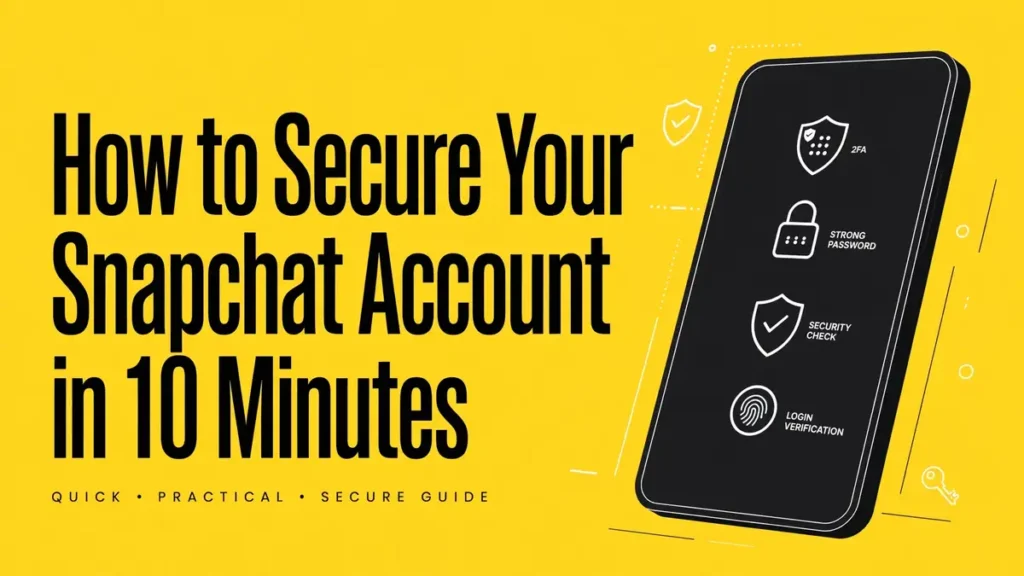
Two-factor authentication, often shortened to 2FA, asks for a second proof of identity when you log in. Even if someone steals your password, they cannot enter the account without that second step.
In Settings, look for Two-Factor Authentication and choose a method. An authenticator app is the safest option because the codes are generated on your device. Text message codes are better than nothing, but SIM-swap scams can intercept them. Whichever method you pick, save the recovery code Snapchat offers and store it somewhere safe, such as a password manager. You will need it if you lose your phone.
We cover this step in more detail in our separate two-factor guide.
Step 3: Verify Your Email and Phone Number (1 minute)
Snapchat uses your email and phone number to send security alerts and to help you recover a locked account. If those details are old or unverified, you may be locked out when you need help most.
Open Settings, check that your email and mobile number are correct and tap the verify option if either is marked unconfirmed. Also make sure the email account itself is secured with a strong password and 2FA, because anyone who controls your email can reset your Snapchat password.
Step 4: Check Where Your Account Is Logged In (1 minute)
Review the devices and sessions linked to your account. Look in the security or login section of Settings for the list of logged-in devices. If you see a phone or location you do not recognize, log that session out and change your password immediately.
It is also wise to log out of Snapchat on any shared, school or borrowed device. Do not tick “remember me” on devices you do not own.
Step 5: Tighten Your Privacy Settings (2 minutes)
Security is not only about stopping hackers. It is also about limiting what strangers can see and do. In Settings, under Privacy Controls, review these options:
- Contact Me: Set to My Friends so strangers cannot send you snaps or chats.
- View My Story: Choose My Friends or Custom instead of Everyone.
- See Me in Quick Add: Turn this off if you do not want to be suggested to people you do not know.
- Location: Switch on Ghost Mode on Snap Map if you do not want friends to see where you are.
Fewer strangers means fewer chances for harassment, scams and social engineering.
Step 6: Learn to Spot Phishing (1 minute)
Phishing is the number one way accounts are stolen. Attackers send messages that look official, for example “Your account will be deleted, log in here” or “Someone viewed your profile, click to see who.” The link leads to a fake login page that records your username and password.
Remember these rules:
- Snapchat will never ask for your password in a chat or message.
- Do not click links from unknown accounts, even if they look like friends who have been hacked.
- Always log in through the official app or by typing the official website address yourself.
- Be suspicious of anything that creates urgency or promises free followers, free premium features or secret information about other users.
If a friend suddenly sends a strange link, tell them their account may be compromised before you click anything.
Step 7: Stay Away from Unofficial Apps and Login Sites
You will find websites and apps that promise extra features and ask you to “log in with Snapchat.” Giving your username and password to any unofficial tool hands over complete control of your account. These tools are not made or supported by Snap Inc., and using them can lead to your account being locked or permanently banned.
If a feature interests you, check whether Snapchat offers it officially. Only enter your credentials in the official app or on Snapchat’s own website.
Step 8: Secure the Phone Itself
Your account is only as safe as the device it runs on. Set a screen lock with a PIN, fingerprint or face unlock, and keep your operating system and the Snapchat app updated. Updates fix known security flaws. Install apps only from your phone’s official app store, and review which apps have permission to read your messages or screen.
Your 10-Minute Checklist
- Strong, unique password set
- Two-factor authentication on, recovery code saved
- Email and phone verified
- Logged-in devices reviewed
- Privacy settings tightened
- Phishing signs learned
- No unofficial apps or login sites used
- Phone locked and updated
Frequently Asked Questions
How often should I change my Snapchat password? You do not need to change it on a schedule if it is strong and unique. Change it immediately if you suspect a problem, or if you reused it on a site that had a data breach.
Is two-factor authentication really necessary? Yes. It stops most account takeovers even when your password leaks.
What if I lose access to my authenticator app? Use the recovery code you saved. Without it, you will need to use Snapchat’s official account recovery process, which takes longer.
Can Snapchat staff ask for my password? No. Anyone who asks for your password, even if they claim to work for Snapchat, is trying to steal your account.
Final Thoughts
Ten minutes of effort can save you from weeks of stress. A strong password, two-factor authentication and a healthy dose of caution cover the vast majority of risks. Set these up today, then share this guide with a friend or family member who uses Snapchat.