Snapchat Privacy and Safety Guide 2026: Control Your Stories, Location and Chats with Official Features
Snapchat Privacy and Safety Guide 2026: Control Your Stories, Location and Chats with Official Features
Snapchat has hundreds of millions of daily users, and most of them are teenagers and young adults who share photos, videos and locations many times a day. That makes privacy a real concern. Who can see your Story? Does everyone on your friends list know where you are right now? What happens if someone screenshots your chat?
The good news is that Snapchat already includes a lot of built-in controls for these situations. Most people never open the privacy menu, so they miss them. This guide walks through the official features that give you more control over your account, explains how each one works, and shows how to keep your account safe without installing anything risky.
Note: Snapchat updates its app often, so menu names and positions can differ slightly depending on your version. If you cannot find a setting, use the search bar inside Settings.
Why Snapchat Privacy Matters
Snapchat feels casual because snaps disappear, but “disappearing” does not mean “private.” A friend can screenshot a snap, record your screen with another device, or simply remember what you shared. Your Story may be visible to more people than you think, and your location can be shown on a map if you have never checked that setting.
Taking ten minutes to review your settings protects you from three common problems: unwanted viewers, location exposure, and account theft. None of these require special tools. They only require knowing where the controls are.
1. Decide Who Can See Your Story
Your Story is the most public part of your account, so start there.
- Open Snapchat and tap your profile icon in the top-left corner.
- Tap the gear icon to open Settings.
- Scroll to the Privacy Controls section and tap View My Story.
- Choose one of the options: Everyone, My Friends, or Custom.
My Friends is the safest default for most people. Only users you have added back can see your Story. Custom lets you hide your Story from specific people, which is useful if you added a classmate, coworker or relative but do not want them watching everything you post. Everyone makes your Story visible to anyone, so use it only if you run a public or creator account.
You can also create Private Stories for a small group, such as close friends or family. You choose exactly who is included, and you can add or remove people at any time. This is far better than posting everything to your main Story and hoping the wrong person does not look.
2. Use Ghost Mode on Snap Map
Snap Map shows your friends where you are, and it updates when you open the app. Some people enjoy this, but it can reveal your home, school or daily routine.
To control it:
- Open the Snap Map from the camera screen.
- Tap the gear icon in the top corner.
- Turn on Ghost Mode.
While Ghost Mode is on, your friends cannot see your location. You can choose a time limit, such as a few hours, or keep it on until you turn it off. If you prefer to share your location with only a few people, the same menu lets you pick specific friends instead of everyone.
A simple rule: if you would not tell a person your address face to face, do not leave your location visible to them on the map. Review who can see you every few months, because friend lists grow over time.
3. Protect Private Photos with My Eyes Only
Memories is where Snapchat stores snaps you choose to save. If someone borrows your phone, they can open Memories and see everything inside. My Eyes Only adds a passcode-protected area inside Memories for photos and videos you want to keep private.
To use it, open Memories, select a snap, tap the menu, and choose the option to move it to My Eyes Only. You will be asked to create a passcode.
One important warning: if you forget this passcode, Snapchat cannot recover the content for you. Write the passcode down somewhere safe. This is an intentional security feature, not a bug, and it is the reason the area is trustworthy.
4. Understand Screenshots and Saved Snaps
Many users search for ways to view or save content without anyone knowing. Before trying anything like that, it helps to understand how the official system works.
Snapchat notifies the sender when someone takes a screenshot of a snap or a chat in many situations. That notification exists to protect the person who shared the content. If you are the one sharing something sensitive, remember that notifications are not foolproof. Someone can still photograph your screen with another phone. The safest approach is to avoid sending anything you would be uncomfortable seeing forwarded.
If you are the one who wants to keep a snap, there are official ways to do it. You can save your own snaps to Memories, and in chats you can save a message by pressing and holding it, which tells the other person you saved it. This is how the platform keeps things fair for everyone. Respecting that system also keeps your account in good standing.
5. Manage Your Chats and Clear Conversations
Chats in Snapchat are set to delete after they are viewed or after a set time, but you can adjust this and clean up manually.
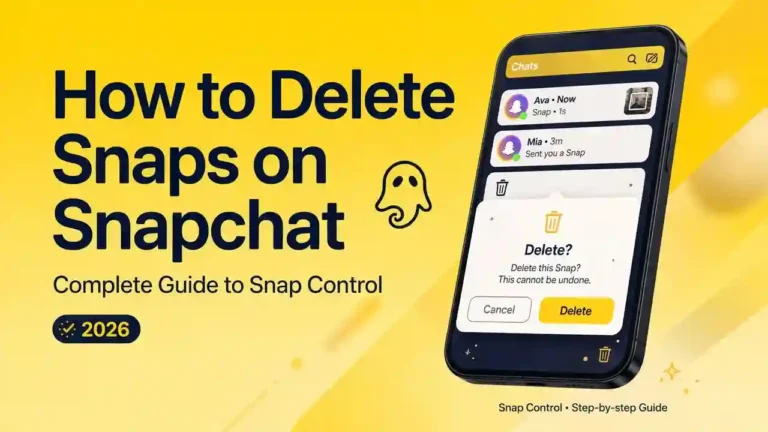
- Delete a single message: Press and hold the message, then choose Delete. The other person may see that a message was deleted.
- Clear a conversation: In Settings, open Clear Conversations, then clear one chat at a time or clear all.
- Chat deletion settings: Depending on your version, you can choose when chats are automatically removed.
Clearing your chats regularly is a good habit, especially if you use a shared device or have sent personal information. Remember that clearing a chat on your side does not always erase what someone else has saved or screenshotted.
6. Control Who Can Contact You
Strangers are one of the biggest risks on any social platform. Snapchat lets you limit who can send you snaps, chats and friend requests.
In Settings under Privacy Controls, review these options:
- Contact Me: Set this to My Friends so only people you have added can send you snaps and chats.
- See Me in Quick Add: Turn this off if you do not want to appear as a suggestion to strangers.
- View My Story: Covered above, but worth checking again.
If you receive messages from someone you do not know, do not reply. Do not click links, do not share your phone number, and do not move the conversation to another app. Block the user and report them using the report option in the profile menu.
7. Secure Your Account with Two-Factor Authentication
Privacy settings only matter if nobody else can log into your account. Account takeovers are common, usually because of weak or reused passwords.
Take these steps today:
- Use a strong, unique password. A password manager helps if you have many accounts.
- Turn on Two-Factor Authentication. Go to Settings, choose Two-Factor Authentication, and follow the steps to use an authenticator app or SMS codes. An authenticator app is more secure than SMS.
- Check logged-in devices. Review where your account is signed in and log out of any you do not recognize.
- Verify your email and phone number. This makes recovery much easier if you ever lose access.
If you think your account was hacked, change your password immediately, sign out of all devices, and use Snapchat’s official recovery page. Never pay anyone who offers to “recover” your account, because that is a common scam.
8. Be Careful with Third-Party and Modified Apps
Search results are full of apps that promise extra Snapchat features: hidden viewing, free premium filters, or tricks that Snapchat itself does not offer. These are usually unofficial or modified versions of the app, and they come with real risks.
- Account lock or ban. Snapchat’s terms do not allow unofficial clients. Accounts using them can be locked or permanently banned, and you may lose your memories and friends.
- Malware and data theft. Apps installed from outside an official store are not reviewed for safety. Some contain spyware or steal login details.
- No updates or support. If something goes wrong, nobody official can help you recover your account.
- Privacy of other people. Features designed to get around notifications can harm friends who trust that their content stays within the rules they chose.
If a feature genuinely interests you, check whether Snapchat offers it officially, either free or through its subscription. Paying for an official subscription is safer than risking your account and your data.
If you have already installed something questionable, uninstall it, change your Snapchat password, turn on two-factor authentication, and run a scan with a trusted security app.
9. Block, Report and Get Help
Sometimes settings are not enough. If someone harasses you, makes you uncomfortable or asks for photos you do not want to send, take these steps:
- Press and hold the user’s name, open the menu, and choose Block.
- Use the Report option so Snapchat can review the account.
- Save evidence if needed, such as the username and the time of the message.
- Tell a trusted adult, friend or family member.
If you or someone you know is in danger, contact your local emergency services. Parents can use Snapchat’s Family Center to see who their teen is talking to without reading the messages themselves.
Quick Privacy Checklist
Use this list to check your account in five minutes:
- Story set to My Friends or Custom
- Ghost Mode on, or location shared with only a few friends
- Contact Me set to My Friends
- Quick Add visibility reviewed
- My Eyes Only set up for sensitive memories
- Two-Factor Authentication enabled
- Strong, unique password
- No unofficial or modified Snapchat apps installed
Frequently Asked Questions
Can I use Snapchat without sharing my location? Yes. Turn on Ghost Mode on Snap Map, and your friends will not see where you are.
Does Snapchat tell people when I screenshot their snap? In many cases, yes. The app notifies the sender when a screenshot is taken. Always respect other people’s content.
Is it safe to install extra Snapchat apps from the internet? No. Unofficial or modified apps can get your account banned and may contain malware. Stick to the official app from your phone’s app store.
What should I do if my account is hacked? Change your password, sign out of all devices, enable two-factor authentication, and use Snapchat’s official recovery tools.
How often should I review my privacy settings? Every two or three months, and any time you add many new friends or install a major update.
Final Thoughts
Snapchat gives you more control than most users realize. By choosing who sees your Story, switching on Ghost Mode, locking private memories, limiting who can contact you and securing your login, you can enjoy the app without exposing yourself to unnecessary risk. These steps cost nothing and take only a few minutes.
The safest approach is always to use the official app, keep it updated, and think before sharing anything you would not want others to see. Share this guide with friends and family who use Snapchat, and review your settings today.